
Zoom QR Code Guide: Run Better Virtual Events, Classes, and Workshops
Teaching or hosting on Zoom is a balancing act between the content and the tech. A zoom qr code removes half the tech friction by letting attendees act on your call without you switching windows, pasting links, or repeating URLs.
Why zoom qr codes work for hosts
Every Zoom room has attendees on different setups: laptop only, dual monitor, TV cast, mobile. A QR code shown on screen works for all of them.
Where to place a QR in your Zoom session
1. Your virtual background
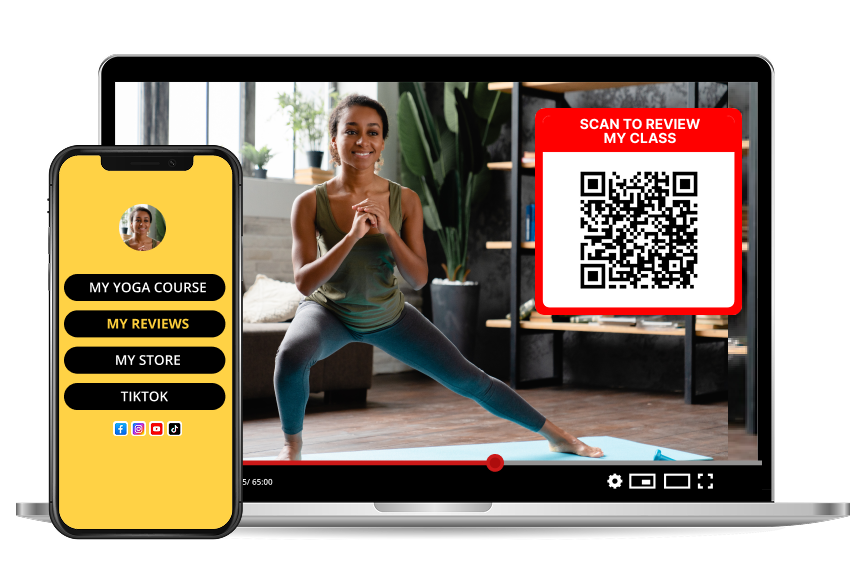
A persistent QR in the corner of your background is always available without interrupting your slides.
2. Your opening and closing slides
Start with a QR to your resource page. Close with a QR to your Reviewtic review page.
3. Screen-shared documents
Add a QR to the last slide of any handout you share. It follows the file into the attendee's downloads folder.
4. During Q&A
Have a QR ready for "where can I learn more?" moments. It saves you from typing links live.
Best destinations for a zoom qr code
A review page
Post-session is the highest-converting moment to ask for a review. A Reviewtic QR on your closing slide captures the energy of the room while it is still there.
A next-session sign-up
Running a series? A QR to next week's registration keeps the audience together.
A resource library
One QR, one page, every worksheet, replay, and reading. Update the page, not the QR.
A tip jar or booking page
Coaches and consultants can quietly monetize sessions with a QR that opens a booking or tipping page.
Tips that double scan rates
Reviews are your Zoom superpower
If you teach, coach, or host paid sessions on Zoom, public reviews are your best sales tool. A Reviewtic review page linked by QR turns every session into an opportunity to earn feedback you can show on your website, LinkedIn, or media kit. One QR, endless compounding trust.